

Workflow for Mac users: An easy method of renaming film scans for easier filing and identification
Importing scanned film into Lightroom needs a degree of planning. For starters, film doesn’t have EXIF data so Lightroom has little to latch on to when it comes to filing and organisation. And, if you use a commercial scanning and processing company you are likely to find that the individual filenames are random and meaningless.
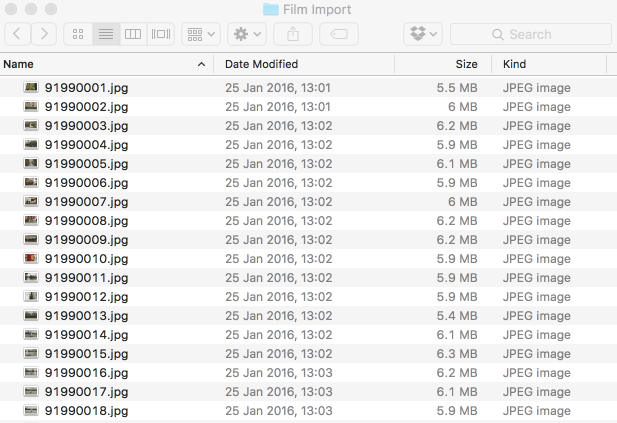
When importing film, my first consideration is the filename. It needs to record the basic information such as camera, lens and film, as well as a unique serial number. If you simply slot in the CD and import into Lightroom there is a danger of completely forgetting where you are, what you did and what you did it with.
Ideally the files should be renamed before import. I’ve devised a simple workflow to accomplish this using a cheap but effective Mac utility which does one thing and one thing well: It renames a batch of files in an intelligent and controlled manner. There are many other batch renaming utilities but this is the one I bought and I’ve been more than happy with it.
To make this work it helps to have a temporary holding folder into which you can copy the individual files from the scan CD and then do the processing.
On the Mac desktop I have a temporary folder which I call, for want of anything better, Film Import. You can call it whatever suits you obviously. Files from the CD are copied into this folder where they can be renamed.
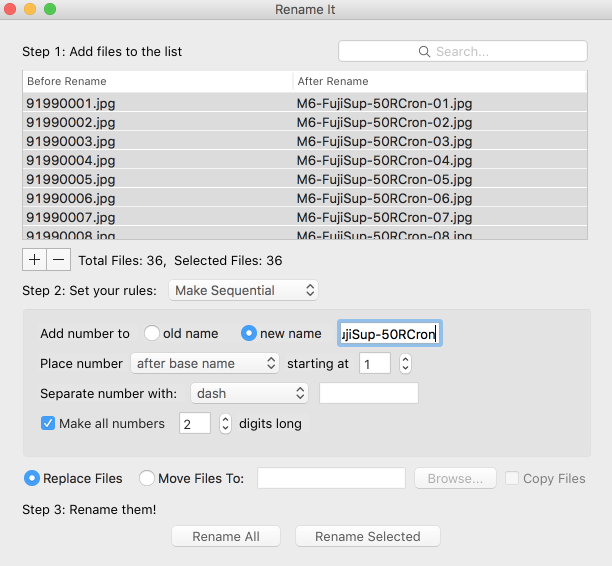
Rename It does what it says on the tin: Just drag a set of files into the executive window and the utility will do a batch rename within seconds. You have full control over the batch name and the sequence number. As you change the parameters the resulting filename is shown so you know exactly what you are going to get before you press the button. The application costs £2.29 for Mac but it is also available for Windows.
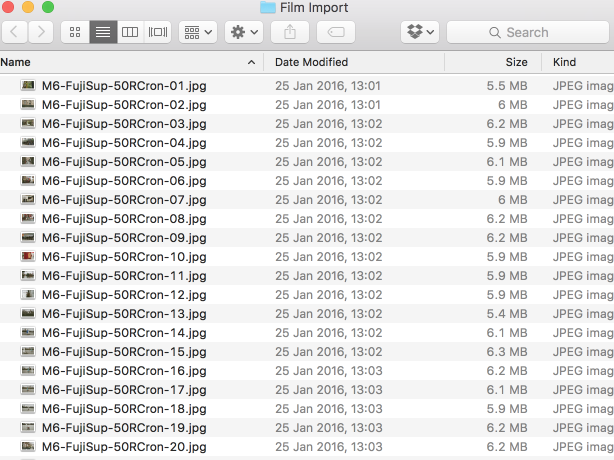
I usually choose a batch description that gives the basic data for future reference. For instance, “M4-FP4-50Lux” could indicate that the FP4 film was exposed on a Leica M4 with a 50mm Lux mounted. This information is normally taken for granted, part of the metadata present in a digital file. By using Rename It I can introduce the most important metadata right into the individual filename.
My File Import desktop folder now contains a revised set of items for import into Lightroom. The only thing missing, and even Rename It can’t introduce that, is exposure date. My Lightroom files are organised into individual dates and the film batch will be added nto a folder created on the date of import. However, subsequent database searches based on exposure date will not show the film batches since the individual files are undated.
At the very least, then, this system introduces an element of order into what can otherwise become a confusing situation.
Note that while I have based this article on Mac I believe Rename It and many similar utilities are also available for Windows.
I hate to keep being the sole commenter on your excellent blogs Mike, but there it is…
I agree wholeheartedly with your advice here…
I would only suggest that I used Apple’s Automator to set up a service to achieve the same thing… So right click on any folder, and at the bottom of the context menu, I have a "Photo Renamer" as an available service.
I don’t have many cameras, at any one time… Currently for instance, I have the M2, with either the 50 DR Cron, or a 90 Elmar (rarely), and an iPhone. Consequently, I tend to name a series of pictures after the event, as opposed to giving lots of detail about the camera…
With the OCOLOY, I name the files with the week number, the film type and the ASA + developer (where different from Rodinal), but essentially the same as your really useful advice here.
As a final comment, I have a friend who is an assembler coder, who wouldn’t disagree more vehemently to this approach… He says, that the file name should be no more than 10 alpha numerics long, and any further information about the file should be in a description field… The file name is for the machine to read, not the human user!
Rest assured you are not alone: Comments are building up now and you probably miss them because they come after you’ve read the post. As you found originally, commenting on Squarespace needs a bit of determination, although once you get the hang of it….
Thanks for the very useful addition to the discussion on this one. Many small utilities such as this simply do what OS X offers as standard but in a slightly more user-friendly fashion. Another example is Alfred (or Launchbar, Silverlight) which allow keyboard access to applications–for instance, Command+Space+LI for Lightroom. This is built in to Spotlight but the apps make it more transparent and add some more toys to attract the buyers.
I won’t get into arguments about file naming. It’s up to the individual what works best.